ImgToolkit's free Instagram Grid Maker splits one image into numbered profile-grid tiles or carousel slides. Choose a preset or custom layout, preview the posting order, and download individual PNGs or a ZIP. Image processing happens in your browser.
How do I split an image into an Instagram grid?
- Upload a photo or Canva export: choose a JPG, PNG, WebP, GIF, BMP, or AVIF image up to 50 MB.
- Choose grid or carousel: select a preset or set custom rows and columns.
- Set the export style: choose Exact for connected puzzle tiles or Safe 4:5 for added edge protection.
- Preview and download: check the numbered tiles, then save PNGs individually or together as a ZIP.
What size should my Instagram grid canvas be?
For three-column grids, multiply the tile height by the number of rows. The examples below show the complete canvas size before it is split into tiles.
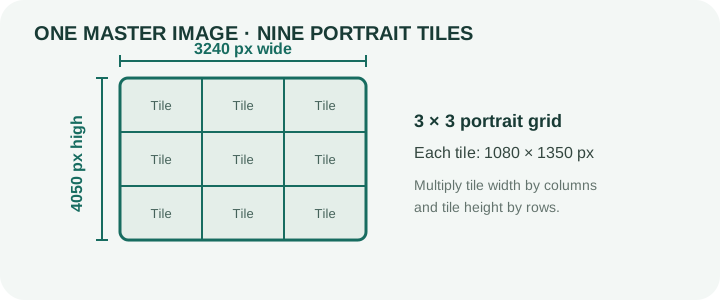
Portrait 4:5 tiles, 1080 × 1350 px each
| Grid | Master canvas |
|---|---|
| 3 × 1 | 3240 × 1350 px |
| 3 × 2 | 3240 × 2700 px |
| 3 × 3 | 3240 × 4050 px |
| 3 × 4 | 3240 × 5400 px |
| 3 × 5 | 3240 × 6750 px |
| 3 × 6 | 3240 × 8100 px |
Square tiles, 1080 × 1080 px each
| Grid | Master canvas |
|---|---|
| 3 × 1 | 3240 × 1080 px |
| 3 × 2 | 3240 × 2160 px |
| 3 × 3 | 3240 × 3240 px |
| 3 × 4 | 3240 × 4320 px |
| 3 × 5 | 3240 × 5400 px |
| 3 × 6 | 3240 × 6480 px |
Tall 3:4 tiles, 1080 × 1440 px each
| Grid | Master canvas |
|---|---|
| 3 × 1 | 3240 × 1440 px |
| 3 × 2 | 3240 × 2880 px |
| 3 × 3 | 3240 × 4320 px |
| 3 × 4 | 3240 × 5760 px |
| 3 × 5 | 3240 × 7200 px |
| 3 × 6 | 3240 × 8640 px |
Exact grid or Safe 4:5: which export should I choose?
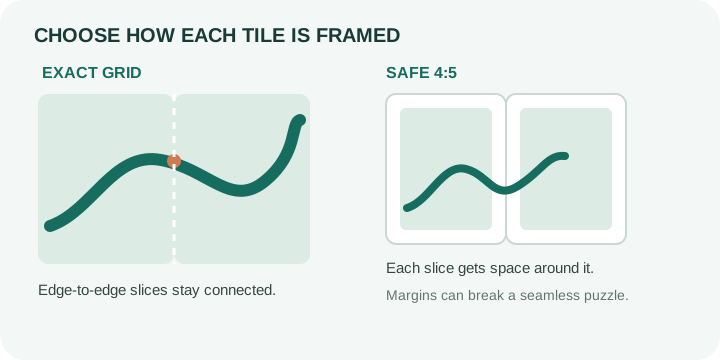
Exact grid keeps each tile edge-to-edge so neighboring pieces line up as one profile puzzle. Safe 4:5 places each tile inside a 4:5 post canvas with a background margin, which can protect edge details when a post preview is cropped.
What is the correct posting order?
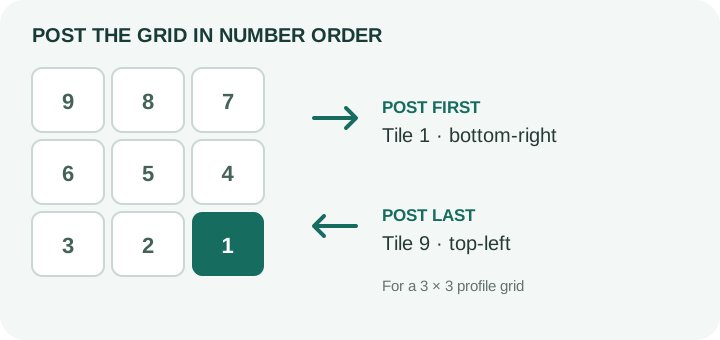
For a profile grid, post tile 1 first and continue upward; the highest-numbered tile is posted last and lands at the top-left. For a carousel, add slides from left to right in the order shown.
Does this Instagram Grid Maker upload my image?
No. ImgToolkit reads, splits, previews, and packages your image locally in your browser. Your image is not sent to our server.
Instagram Help Center says shared photos are uploaded at up to 1080 pixels wide and supports aspect ratios from 1.91:1 through 3:4. Read Instagram's image-resolution guidance.
Frequently asked questions
- How do I make a 3 × 3 Instagram grid?
- Upload one image, select the 3 × 3 preset, choose Exact or Safe 4:5, review the numbered preview, then download the nine PNG tiles or a ZIP.
- What dimensions should I use for a 3 × 3 grid?
- Use a 3240 × 4050 px canvas for 1080 × 1350 px portrait tiles, 3240 × 3240 px for square tiles, or 3240 × 4320 px for 3:4 tiles.
- Which tile do I post first?
- For a profile puzzle, post tile 1 first and continue in number order. The highest-numbered tile is posted last and appears in the top-left.
- Can I use this for a carousel?
- Yes. Choose Carousel mode, set the number of slides, and add the exported tiles to one Instagram carousel from left to right.
- What does Safe 4:5 do?
- Safe 4:5 exports each tile inside a portrait post canvas with an adjustable margin style. Exact grid exports the tile edge-to-edge.
- Which image formats can I use?
- Upload JPG, PNG, WebP, GIF, BMP, or AVIF files up to 50 MB. The tool exports PNG tiles.
- Is my image uploaded to a server?
- No. Image processing and ZIP creation happen in your browser.
- Can I split a Canva design?
- Yes. Export the full Canva design as one image, upload it here, and split it into separate tiles.
Related tools: Social Media Creative Suite and Collage Maker.