This free DPI calculator converts an image’s pixel width and height into a print size in inches and centimeters, or estimates the pixels needed for a target print size. Enter dimensions only; the calculator does not edit or upload an image.
How to use the DPI calculator
- Enter image dimensions: Set the image width and height in pixels, then choose its print DPI.
- Read the print size: The calculator divides each pixel dimension by the DPI and shows the result in inches and centimeters.
- Calculate pixels needed: Switch modes, enter the target print dimensions, and choose a DPI to see the required pixels and megapixels.
- Check print requirements: Confirm orientation, crop, file format, and resolution requirements with your print provider.
How to calculate print size from pixels
Divide an image’s pixel width and height by its print resolution to estimate its physical size. For the reverse calculation, multiply the target print dimensions in inches by the chosen DPI. A 3,000 × 2,000 pixel image at 300 DPI prints at 10 × 6.67 inches. This calculation changes the size estimate, not the image; it does not add pixels or restore detail.
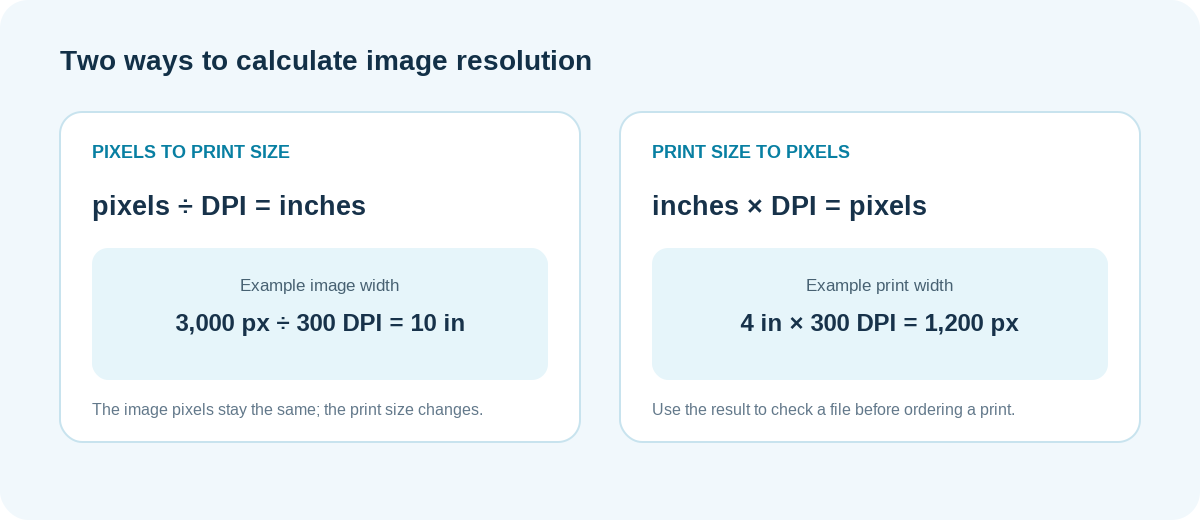
Example pixels for common print sizes
These examples use print inches multiplied by target DPI. The first pair is width × height in portrait orientation; rotate both values for landscape. A4 dimensions are approximate.
| Print size | At 150 DPI | At 300 DPI | At 600 DPI |
|---|---|---|---|
| 4 × 6 in | 600 × 900 px | 1,200 × 1,800 px | 2,400 × 3,600 px |
| 8 × 10 in | 1,200 × 1,500 px | 2,400 × 3,000 px | 4,800 × 6,000 px |
| A4 (approx.) | 1,241 × 1,754 px | 2,481 × 3,507 px | 4,962 × 7,014 px |
More pixels can support a larger print or finer detail, but the ideal setting depends on the printer, paper, and viewing distance. Confirm the required resolution with your print provider.
DPI vs. PPI: what the numbers mean
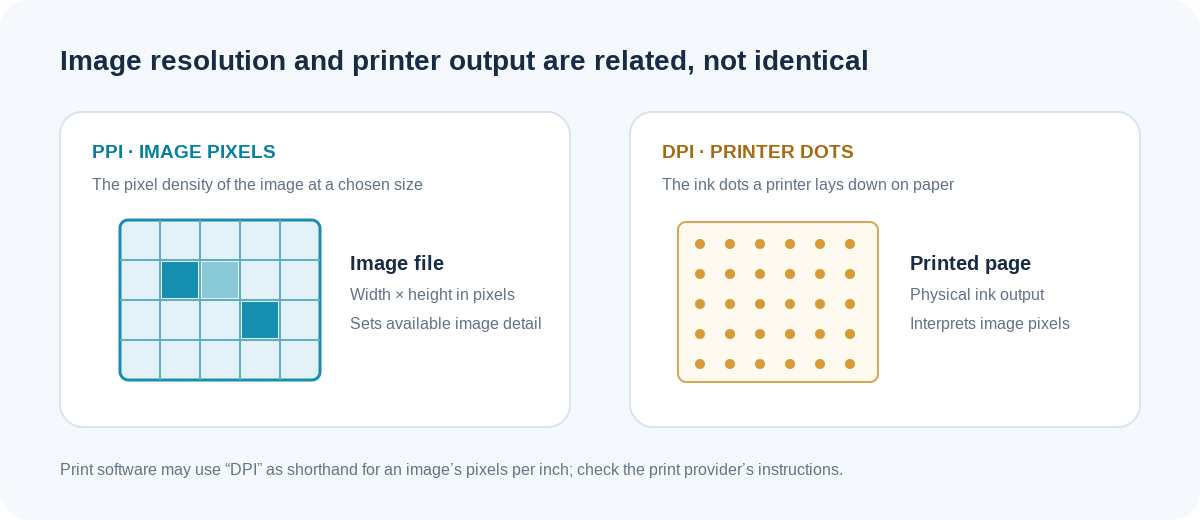
PPI describes how many image pixels are placed in each inch of a print. DPI describes how many ink dots a printer lays down per inch. Print shops and image apps often use “DPI” as shorthand for image PPI, so check the wording in your print instructions. A DPI setting cannot create extra image detail by itself.
Before sending an image to print
- Compare the image’s aspect ratio with the paper size; cropping can remove pixels from the edges.
- Use the target DPI to check print width and height, then review the result at the intended viewing distance.
- Follow the print lab’s requested file format, color profile, bleed, and resolution settings.
- If the image is too small, use the image upscaler before preparing the final print file.
DPI calculator FAQs
What DPI should I use for printing photos?
300 pixels per inch (often called DPI in print settings) is a common target for photo prints viewed up close. Large posters viewed from farther away can often use a lower resolution, such as 150 PPI. The printer, paper, viewing distance, and print lab requirements all matter, so check the vendor’s specifications.
How many pixels do I need for a 4 × 6 inch print at 300 DPI?
At 300 DPI, a 4 × 6 inch print needs 1,200 × 1,800 pixels in portrait orientation, or 1,800 × 1,200 pixels in landscape. Use the calculator’s print-size-to-pixels mode to enter the orientation you need.
What is the difference between DPI and PPI?
PPI means pixels per inch and describes image pixels across a chosen print size. DPI technically means a printer’s physical ink dots per inch. Print workflows often use DPI as shorthand for image PPI; when a lab asks for a 300 DPI file, it usually means 300 image pixels per printed inch.
Can I upscale a low-resolution image for a larger print?
Upscaling can add pixels, but ordinary resizing cannot restore detail missing from the original. AI upscaling can generate plausible detail, but it does not recover the exact original scene. Check your target dimensions first, then use an image upscaler if needed.
What resolution do I need for a large poster or banner?
A 24 × 36 inch poster at 150 PPI needs 3,600 × 5,400 pixels. Large prints viewed from farther away may work at lower pixel density, but the right value depends on viewing distance and the print vendor’s requirements.
Why does my image look sharp on screen but blurry in print?
A screen’s physical pixel density varies by device, and display scaling can make a small image look clear on screen. Print sharpness depends on image pixels divided by the intended print dimensions. For example, 600 × 400 pixels at 300 DPI is about 2 × 1.33 inches; enlarging it to 4 × 6 inches lowers its pixel density.
Does changing DPI add detail to an image?
No. Changing a DPI value without resampling changes the intended print size, not the number of pixels or image detail. This calculator converts dimensions; it does not edit or upscale your image.